
Designed a human-in-the-loop document validation interface where users efficiently verify and correct AI-extracted fields and line items against source PDFs, improving accuracy, speed, and trust in automation. It is an enterprise-grade document validation experience that combines AI extraction, confidence indicators, and human review to ensure reliable data validation before ERP integration.
Check out Figma Mockups →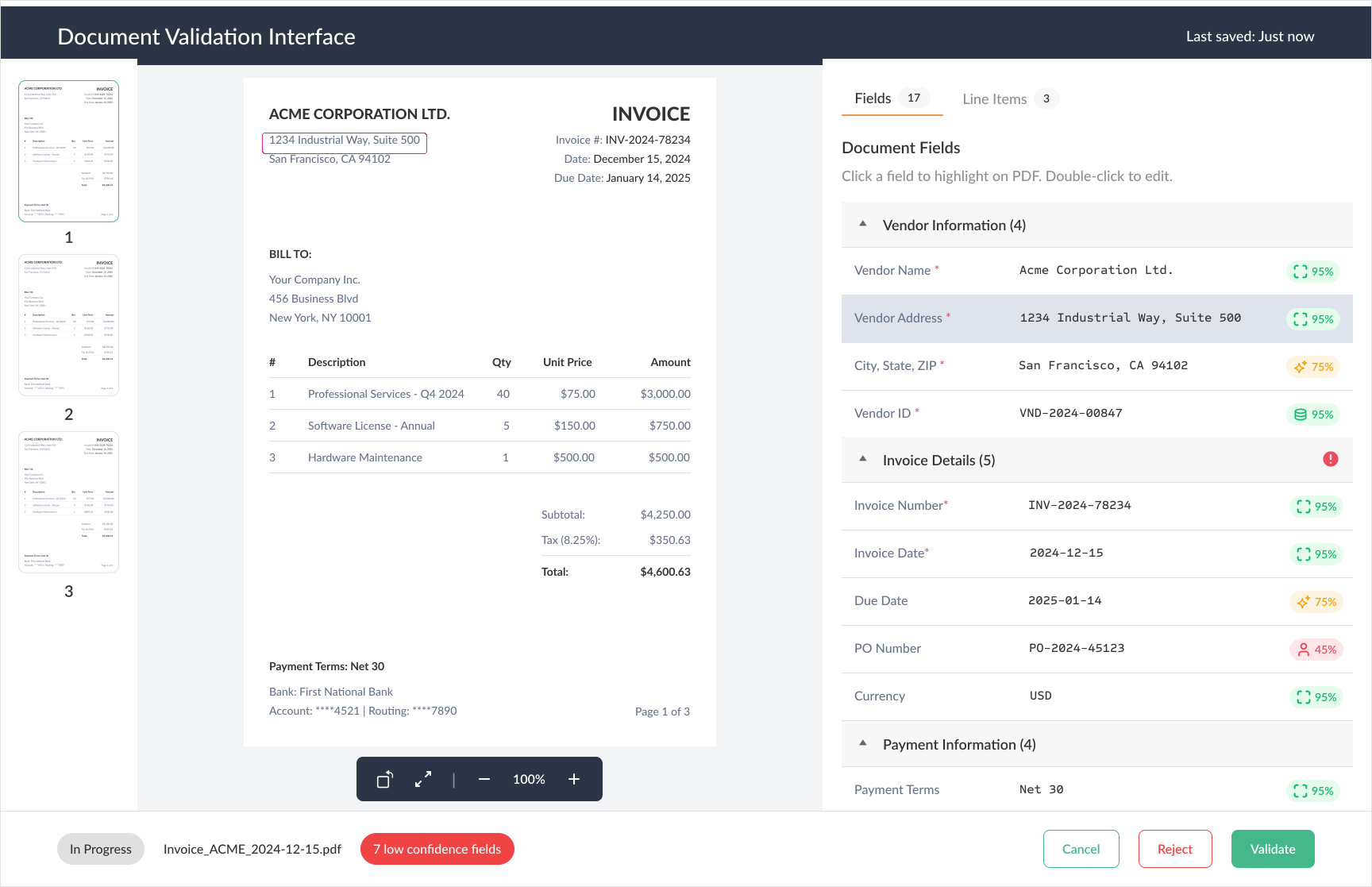
Designed to support human-in-the-loop validation through clear data mapping and confidence visibility, that balance automation, human control, and scalable enterprise workflows.
Figma, Sketch, Notion
3 days approx.
1. Research Goals (What we want to validate)
Primary goals:
→Usability: Can users quickly understand what needs validation and where?
→ Efficiency: Can documents be validated with minimal context switching and scrolling?
→ Confidence clarity: Do users correctly interpret confidence scores and data-source reliability?
→ Error prevention: Are mismatches, missing fields, and line-item issues obvious?
Secondary Goals:
→ Learn how users currently cross‑reference PDFs and extracted data.
→ Identify pain points related to zooming, multi-page documents, and dense line items.
1. Core IA Decisions (Informed by Research)
→ Layout Split, PDF Viewer (60%): Primary source of truth. Data Panels (40%): Action area. Reasoning: Users constantly visually cross‑check values.
2. Fields Panel – Grouping Structure
→ Groups (collapsible): Vendor Information, Invoice Details, Amounts & Tax, Dates, Payment Information
→ Rules: Low‑confidence fields auto‑expanded
3. Tabs Behaviour (Fields ↔ Line Items)
→ Active highlight persists across tab switches→ PDF state (zoom, pan, page) never resets.Tab switch does NOT clear selection
4. Interaction Specifications
Highlight Logic, Selecting a field or grid cell: Pink bounding box on PDF, Auto‑scroll PDF if off‑screen, Highlight scales with zoom
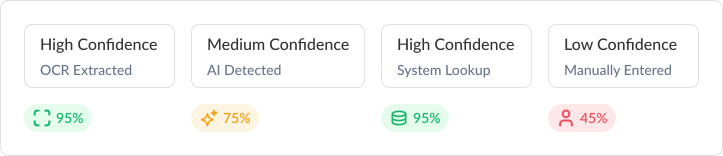
5. Confidence Indicators
High (≥90%): Green, Medium (70–89%): Amber, Low (<70%): Red + warning icon, Tooltip: source + explanation
6. Ghost Row Behaviour
(Line Items)Always visible at the bottom, Shows placeholder text, Enter → becomes an active row, Esc → clears and collapses, Undo is supported after deletion
Screen 1 – Initial Load
PDF fit‑to‑width
Page 1 visible
Fields tab active
.svg)
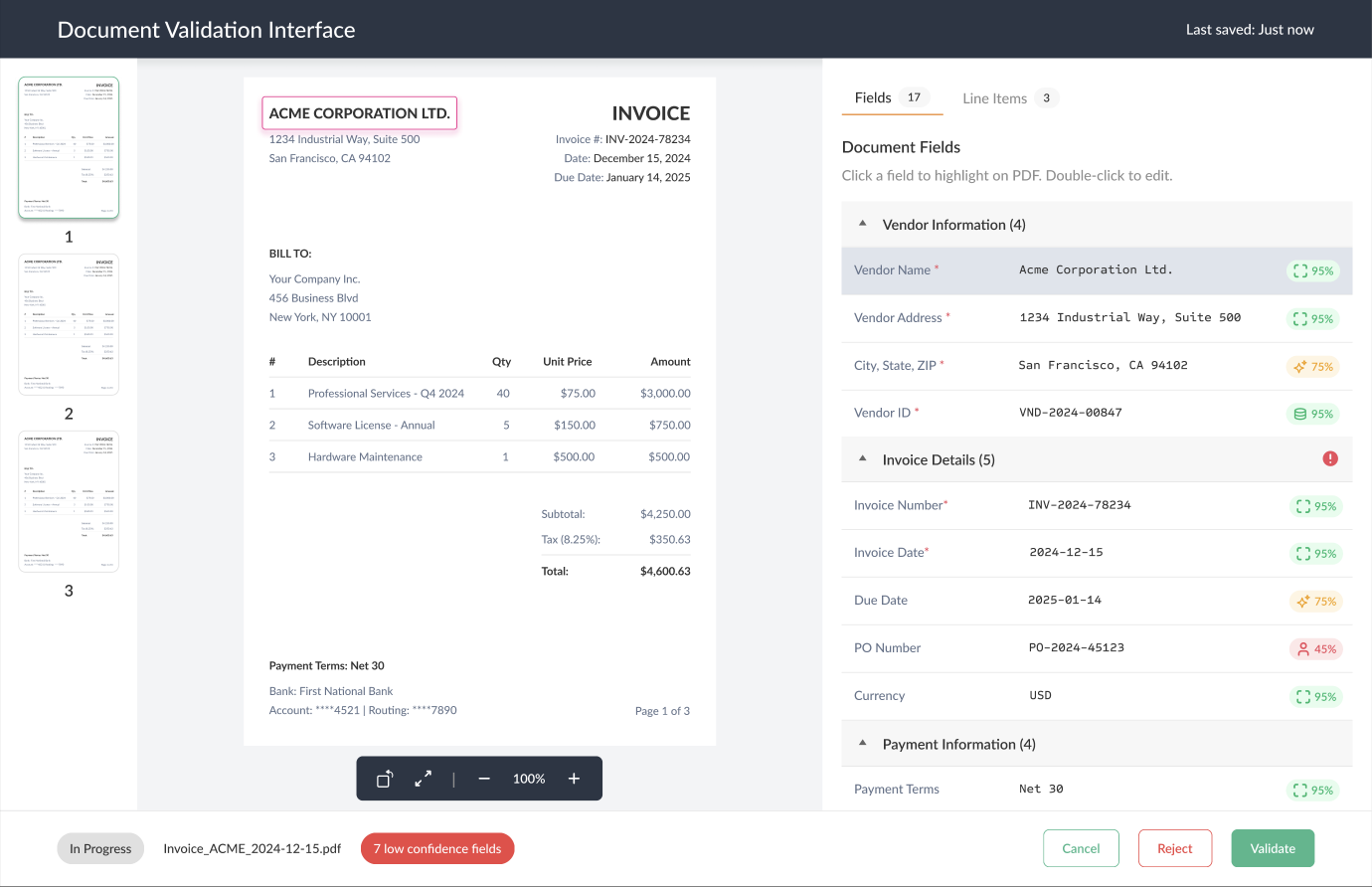
Screen 2 – Field Selection
Click field → pink highlight on PDF
Confidence tooltip visible
Field in focus state
Screen 3 – Line Items Editing
Interactions: Add row via ghost row
Copy‑down values
Delete row → Undo toast
Keyboard navigation across cells
.svg)
Screen 4 – Read‑Only State
All fields locked“Document validated”
.svg)
Screen 5 – Edge Cases
Multi‑page navigation
Rotated page example
Long field list collapsed
Horizontal scroll in grid
.svg)